Last updated: 2026-10-08

Photo biodata maker

Biodata Maker with Photo | Profile + 5 Images

A marriage biodata with photo should make the main portrait part of the information hierarchy, not an afterthought. Additional photos can provide variety without crowding the first page.

Quick answer

Use one photo as the profile image and add additional photos only when they genuinely help. The builder supports up to five images and can place the extra photos on dedicated pages or together on a gallery page.

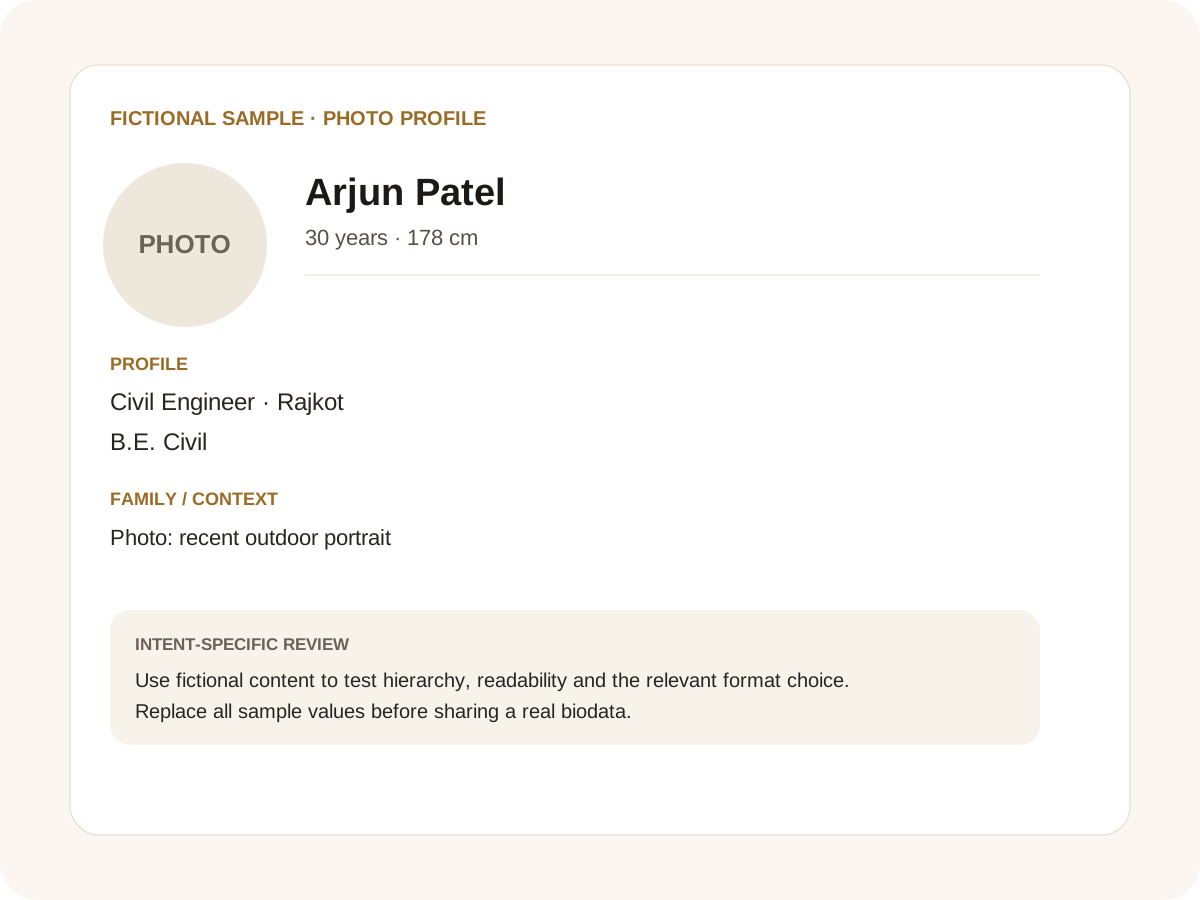
Fictional filled marriage biodata example for photo profile
Fictional sample for layout guidance. Replace every value with your own verified information.

Filled sample

What this example demonstrates

  • ✓ One strong main portrait
  • ✓ A main portrait plus supporting photos
  • ✓ A profile where the photo is secondary to the facts

Choose the profile photo carefully

Use a recent, clear portrait with natural lighting. The face should be easy to see and the crop should work with the chosen template. Avoid heavy filters that make the person look unlike their everyday appearance.

The profile photo stays with the main biodata page. Additional photos can be separated so the information remains readable.

Five photos without a crowded page

The photo system supports up to five images. That does not mean all five need to appear as tiny thumbnails on page one. A page-per-photo option gives each additional image more space, while an all-photos option creates a compact gallery page.

Choose based on how the document will be shared. A print-oriented profile may benefit from dedicated pages; a quick WhatsApp share may prefer a compact gallery.

Photo privacy

Only upload photos you are comfortable placing in the exported document. Avoid images that reveal another person’s private information, workplace screens or home address.

Before forwarding the finished biodata, check every photo page as carefully as the main page.

Common mistakes for this intent

  • • Using an outdated or heavily filtered photo
  • • Letting the image crowd the name and facts
  • • Uploading photos without checking orientation
  • • Including relatives’ photos without permission

Practical examples to compare

  1. 1. One strong main portrait
  2. 2. A main portrait plus supporting photos
  3. 3. A profile where the photo is secondary to the facts

How to use a photo profile example

Photo-led biodata should still be information-led. The fictional example gives the main portrait enough space to look natural while keeping education, career and family facts prominent. One strong recent portrait is usually more useful than a crowded collage on the first page. If additional photographs matter, they can be handled separately. Photo selection also has a privacy dimension: do not include relatives or children merely to make a page look fuller without their permission.

For this intent, the sample facts are deliberately fictional: Arjun Patel is shown as the profile name, while the rest of the values establish a believable context without representing a real person. The example uses 30 years · 178 cm, Civil Engineer · Rajkot and B.E. Civil to show how personal, career and education information can sit together. The family line, “Photo: recent outdoor portrait,” demonstrates the amount of context that can be supplied without turning the first page into a family directory. Replace every value with verified information before sharing.

Three situations this format can handle

Three practical ways to use this format are worth testing. First, one strong main portrait. Second, a main portrait plus supporting photos. Third, a profile where the photo is secondary to the facts. These are different use cases rather than three versions of the same paragraph: one prioritises the information hierarchy, another changes the family context or audience, and the third tests how the design behaves when an optional requirement is introduced. Keeping those choices explicit makes it easier to explain why a particular template or field order was selected.

Review the finished photo profile profile

The most useful review is a content review followed by a rendering review. Check the facts, spelling, dates, relationships and location first. Then inspect the final page at the size at which a parent or prospective match will actually read it. For this page, pay particular attention to photo profile: it should be visible enough to answer the searcher’s question but should not overwhelm the rest of the profile. If a detail does not help a genuine first introduction, remove it rather than shrinking everything else.

A practical checklist

  • ✓ One clear profile photo
  • ✓ Up to five total images
  • ✓ Correct crop
  • ✓ Separate photo-page option
  • ✓ No private background information
  • ✓ Preview every export page
Start a free biodata

Related biodata resources

Frequently asked questions

The current builder supports up to five photos, including the profile photo.