Last updated: 2026-10-08

Mobile workflow

Biodata Maker for Mobile | Create on Phone

Many marriage biodatas are created and shared on phones. A mobile-first workflow should make typing, photo selection, previewing and exporting practical without forcing users to manage a desktop design application.

Quick answer

Open the builder in a modern mobile browser, complete the predefined fields, add a profile photo, preview the selected template and export the finished biodata. Keep the first page concise and use dedicated photo pages when more images are needed.

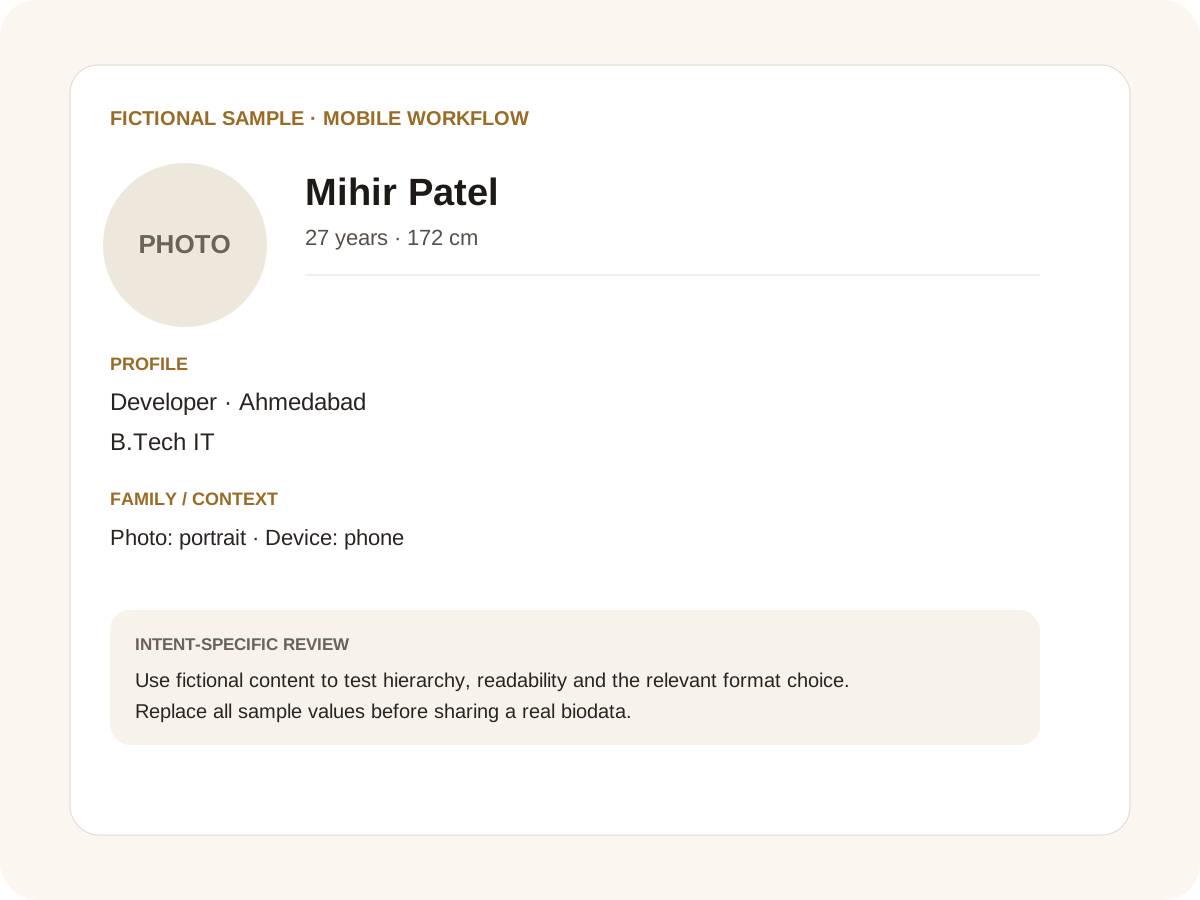
Fictional filled marriage biodata example for mobile workflow
Fictional sample for layout guidance. Replace every value with your own verified information.

Filled sample

What this example demonstrates

  • ✓ Creating the profile entirely on a phone
  • ✓ Uploading and cropping a portrait on mobile
  • ✓ Checking the final PDF before forwarding

Fill only what matters first

Phone screens make long forms feel heavier, so start with the core fields. Optional community, horoscope and NRI details can be added later when they are actually needed.

Use the field reorder controls to bring the information your family cares about to the top of each category.

Photo handling on a phone

Choose a recent profile photo from the device and crop it to fit the template. Additional photos can be uploaded when needed, but the main page should remain focused on one profile image.

If the family wants to share several photos, use the dedicated photo-page export rather than placing tiny thumbnails in the main biodata.

Mobile sharing and app searches

A PNG can be convenient for WhatsApp and social sharing, while a PDF is better for printing or formal forwarding. Word export is useful when a family member wants to make later text edits on a computer.

If you are searching for a bio data maker app download, a marriage biodata maker APK or an online bio data maker on phone, a browser-based workflow avoids installing an APK and keeps the same profile accessible from a supported mobile browser. If you are comparing a biodata maker app without ads with a browser tool, compare the actual export quality, privacy model and editing controls rather than the app label alone. Always preview the exported document before sending it and check regional scripts and long values for wrapping.

Common mistakes for this intent

  • • Using tiny controls or text that require desktop zoom
  • • Uploading a low-resolution photo
  • • Skipping the final export check
  • • Entering sensitive data while using an untrusted device

Practical examples to compare

  1. 1. Creating the profile entirely on a phone
  2. 2. Uploading and cropping a portrait on mobile
  3. 3. Checking the final PDF before forwarding

How to use a mobile workflow example

Mobile creation changes the order in which people notice problems. A field that looks fine on a desktop can feel crowded on a phone, and a photo that looks acceptable in the editor can become awkward after cropping. The fictional example represents a phone-first workflow: enter the essential facts, add a portrait, inspect the preview, then export. Keeping the first draft concise makes touch editing easier and reduces the chance of accidental omissions when the profile is prepared away from a desk.

For this intent, the sample facts are deliberately fictional: Mihir Patel is shown as the profile name, while the rest of the values establish a believable context without representing a real person. The example uses 27 years · 172 cm, Developer · Ahmedabad and B.Tech IT to show how personal, career and education information can sit together. The family line, “Photo: portrait · Device: phone,” demonstrates the amount of context that can be supplied without turning the first page into a family directory. Replace every value with verified information before sharing.

Three situations this format can handle

Three practical ways to use this format are worth testing. First, creating the profile entirely on a phone. Second, uploading and cropping a portrait on mobile. Third, checking the final pdf before forwarding. These are different use cases rather than three versions of the same paragraph: one prioritises the information hierarchy, another changes the family context or audience, and the third tests how the design behaves when an optional requirement is introduced. Keeping those choices explicit makes it easier to explain why a particular template or field order was selected.

Review the finished mobile workflow profile

The most useful review is a content review followed by a rendering review. Check the facts, spelling, dates, relationships and location first. Then inspect the final page at the size at which a parent or prospective match will actually read it. For this page, pay particular attention to mobile workflow: it should be visible enough to answer the searcher’s question but should not overwhelm the rest of the profile. If a detail does not help a genuine first introduction, remove it rather than shrinking everything else.

A practical checklist

  • ✓ Use a modern mobile browser
  • ✓ Complete core fields first
  • ✓ Upload one strong profile photo
  • ✓ Preview long text
  • ✓ Choose PDF or image sharing
  • ✓ Keep a downloaded backup
Start a free biodata

Related biodata resources

Frequently asked questions

Yes. The builder is designed to work in a modern mobile browser, including photo selection and export.