Last updated: 2026-10-08

Hindu visual preset

Biodata Maker with Ganesh Photo | Hindu Profile

Some Hindu families prefer a Ganeshji image or symbol at the top of a marriage biodata. The important design choice is to make that spiritual element optional and respectful while keeping the candidate’s information readable.

Quick answer

Choose a Hindu-friendly template, select Ganeshji when it matches your family preference, add the profile photo and fill the predefined marriage fields. You can also use Om, Swastik or another available symbol when that is more appropriate to your family.

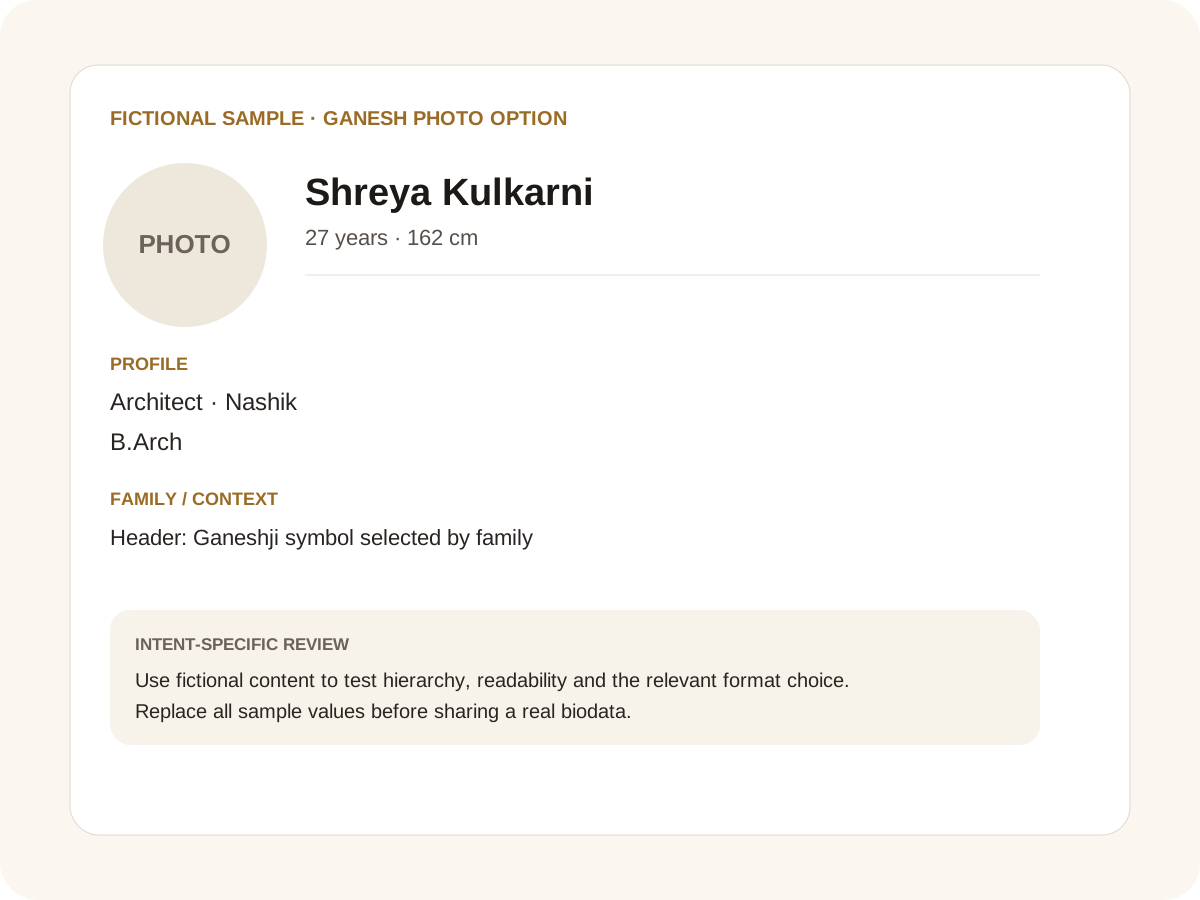
Fictional filled marriage biodata example for Ganesh photo option
Fictional sample for layout guidance. Replace every value with your own verified information.

Filled sample

What this example demonstrates

  • ✓ A profile with a small Ganeshji header
  • ✓ A traditional Hindu profile with a restrained symbol
  • ✓ A modern profile where the symbol is optional

Religious symbols should be user-selected

A religious header is personal. The builder can suggest Ganeshji for a Hindu profile, but the user remains free to choose another supported symbol or none at all. This avoids assuming that one visual represents every Hindu household.

The same principle applies to Jain, Muslim, Sikh and Christian profiles: community presets can suggest a suitable starting point while the final choice remains with the person creating the biodata.

Keep the main photo separate from the spiritual header

The profile photograph should remain the main portrait of the candidate. A Ganeshji symbol is a decorative or cultural header element, not a replacement for the profile photo.

Additional candidate photos can be placed on dedicated pages so the main biodata stays clean and the spiritual header does not compete with the person’s profile.

Optional Hindu fields

Families may want gotra, kuldevi, devak, mosal, rashi, nakshatra or manglik status. These fields are not universal, so add only the ones the family actually uses and has verified.

If a family needs another term, the custom-field option can add it without changing the predefined premium structure.

Common mistakes for this intent

  • • Assuming every Hindu family wants a religious symbol
  • • Letting the symbol dominate the profile
  • • Using imagery that reduces text contrast
  • • Making a religious field appear mandatory

Practical examples to compare

  1. 1. A profile with a small Ganeshji header
  2. 2. A traditional Hindu profile with a restrained symbol
  3. 3. A modern profile where the symbol is optional

How to use a Ganesh photo option example

A Ganeshji image can be meaningful to a Hindu family, but it should remain an optional design choice rather than a universal requirement. The fictional example uses a small symbol so the person’s name and profile remain dominant. This is especially important on mobile screens, where a large decorative header can consume valuable space. Families can choose whether the symbol belongs in their version; the underlying biodata should remain complete and useful even when the symbol is removed.

For this intent, the sample facts are deliberately fictional: Shreya Kulkarni is shown as the profile name, while the rest of the values establish a believable context without representing a real person. The example uses 27 years · 162 cm, Architect · Nashik and B.Arch to show how personal, career and education information can sit together. The family line, “Header: Ganeshji symbol selected by family,” demonstrates the amount of context that can be supplied without turning the first page into a family directory. Replace every value with verified information before sharing.

Three situations this format can handle

Three practical ways to use this format are worth testing. First, a profile with a small ganeshji header. Second, a traditional hindu profile with a restrained symbol. Third, a modern profile where the symbol is optional. These are different use cases rather than three versions of the same paragraph: one prioritises the information hierarchy, another changes the family context or audience, and the third tests how the design behaves when an optional requirement is introduced. Keeping those choices explicit makes it easier to explain why a particular template or field order was selected.

Review the finished Ganesh photo option profile

The most useful review is a content review followed by a rendering review. Check the facts, spelling, dates, relationships and location first. Then inspect the final page at the size at which a parent or prospective match will actually read it. For this page, pay particular attention to Ganesh photo option: it should be visible enough to answer the searcher’s question but should not overwhelm the rest of the profile. If a detail does not help a genuine first introduction, remove it rather than shrinking everything else.

A practical checklist

  • ✓ Optional Ganeshji header
  • ✓ Profile photo
  • ✓ Verified Hindu/community fields
  • ✓ Gotra or horoscope fields only when relevant
  • ✓ Custom field option
  • ✓ A4 PDF and Word export
Start a free biodata

Related biodata resources

Frequently asked questions

Yes, where the selected template supports the optional Hindu symbol preset.